👨👦👦 How do I add or remove a single learner?
As a Partner Admin, you can manually add or remove a single learner from your manually on the People Page.
➕ Add a single Learner
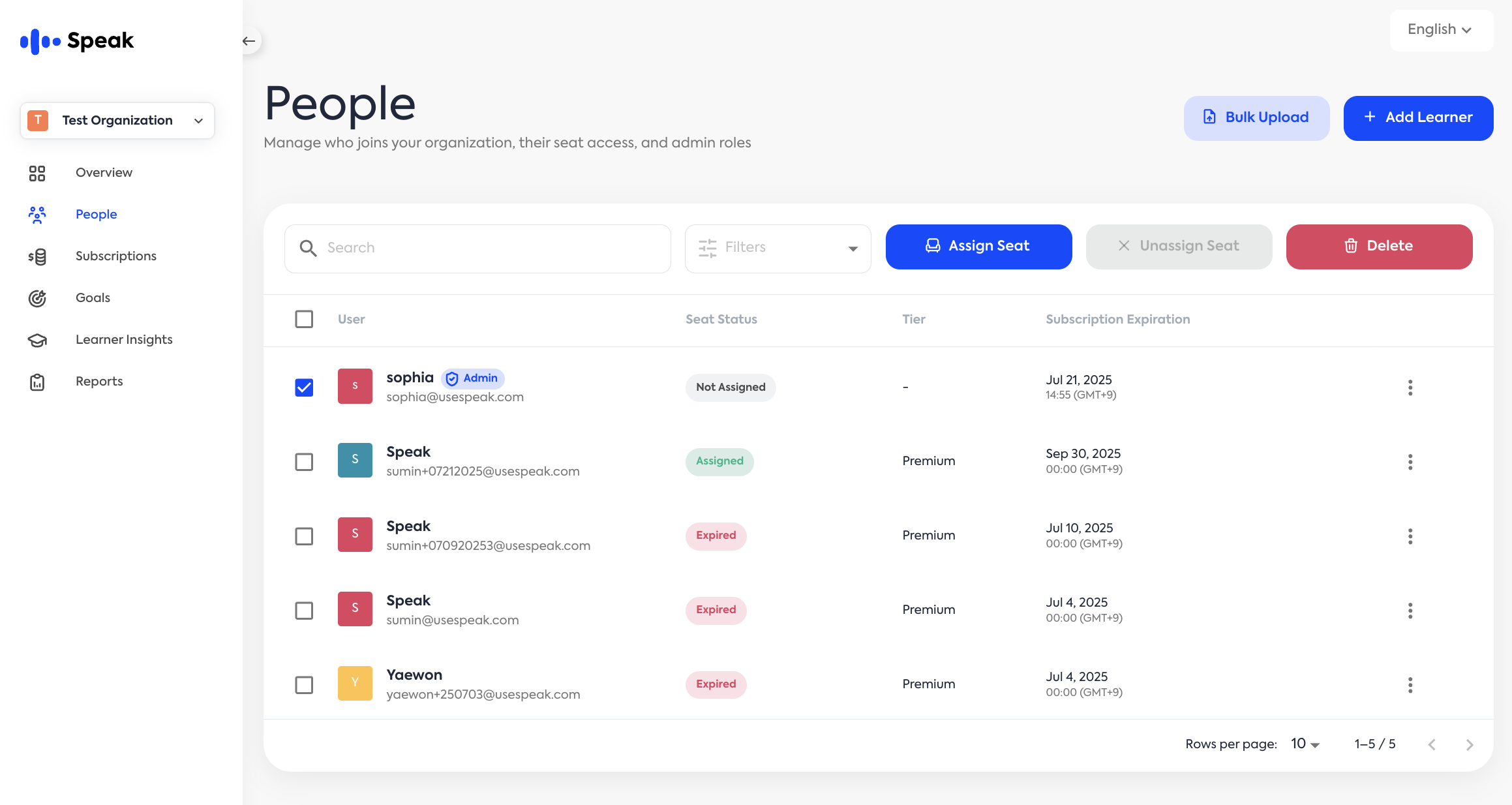
Go to the “People” tab in the left-hand menu.
Click the blue “Add Learner” button ****in the top right corner. This opens the “Remove this person” popup.
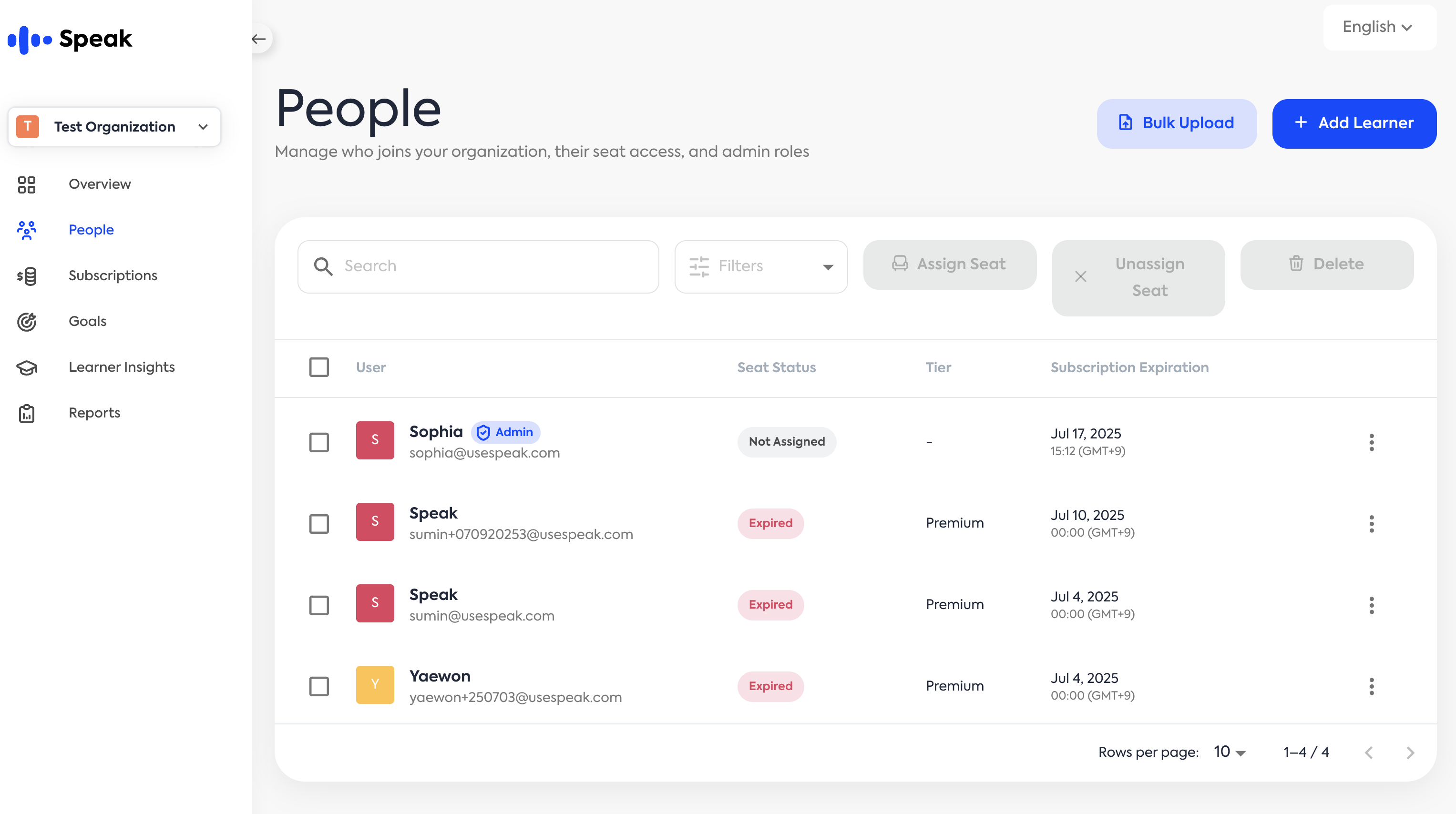
In the “Add New Learner” popup, enter the account details.
Name: The learner’s name
Email Address: The learner’s email address
Phone: The learner’s phone number (optional)
The phone number should start with the country code.
Providing a phone number is optional.
Language Pair: Select the learner’s native and target language pair.
Associated Subscription: Select the applicable subscription for the learner.
Click the blue “Add Learner” button to add the learner.
➕ Assign Seat
If an account already exists within the organization (in People Tab):
From the left menu tab, select the “People” tab.
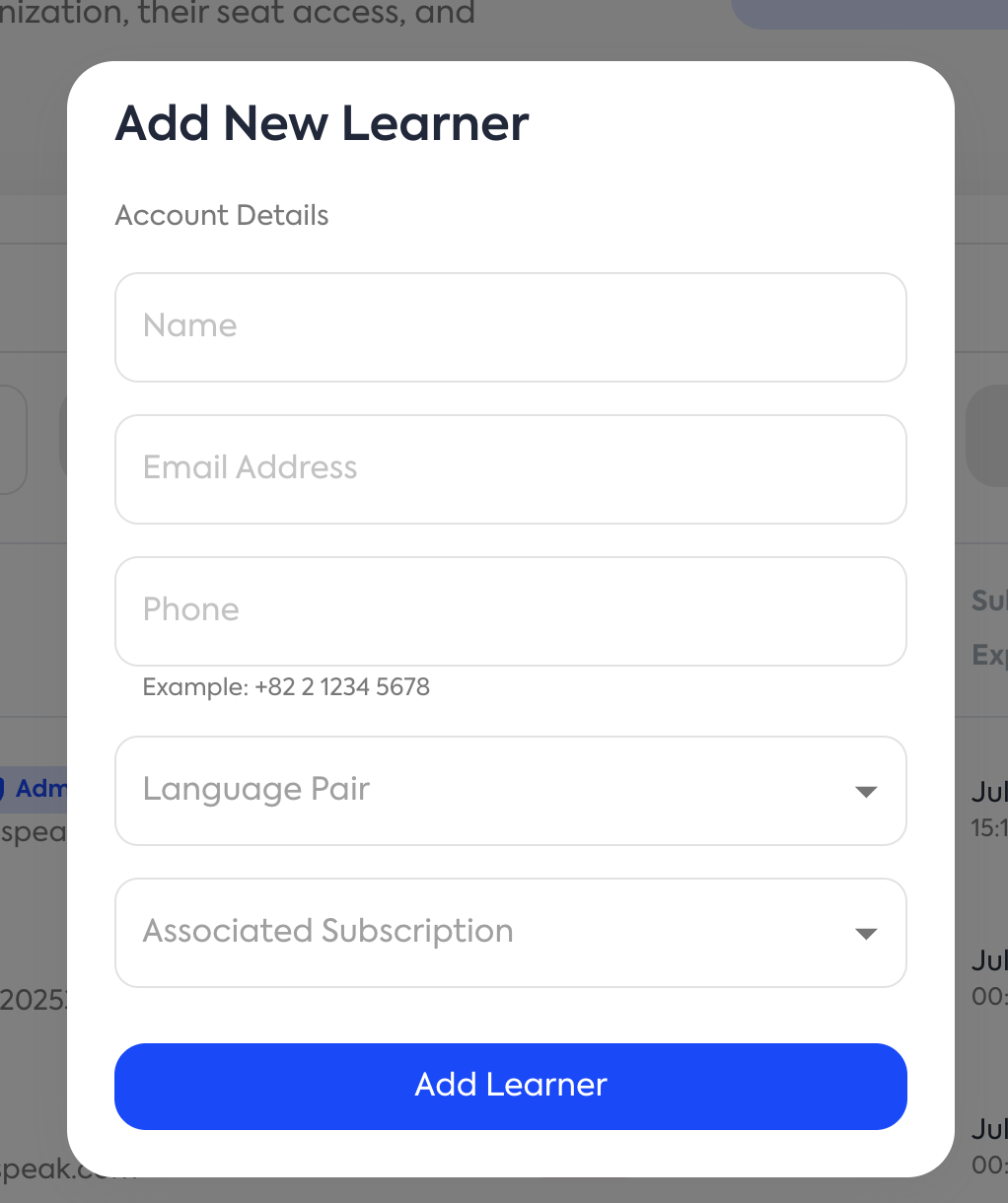
Select the learner to whom you want to assign a subscription (only learners with a sheet status of “Not Assigned” are eligible).
Click “Assign Seat”.
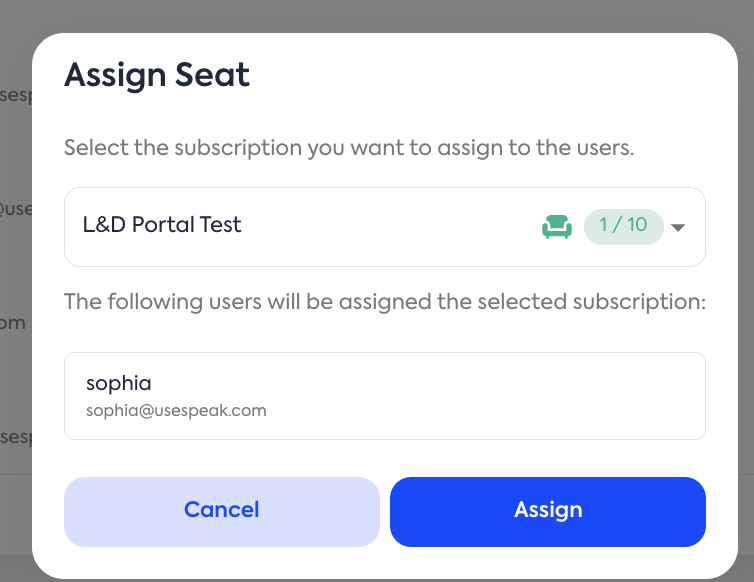
Select the subscription you wish to assign.
Click the blue “Assign” button to assign the subscription.
➖ Unassign Seat
Select the “People” tab from the menu on the left.
Select the learner whose subscription you want to remove.
Click “Unassign Seat.”
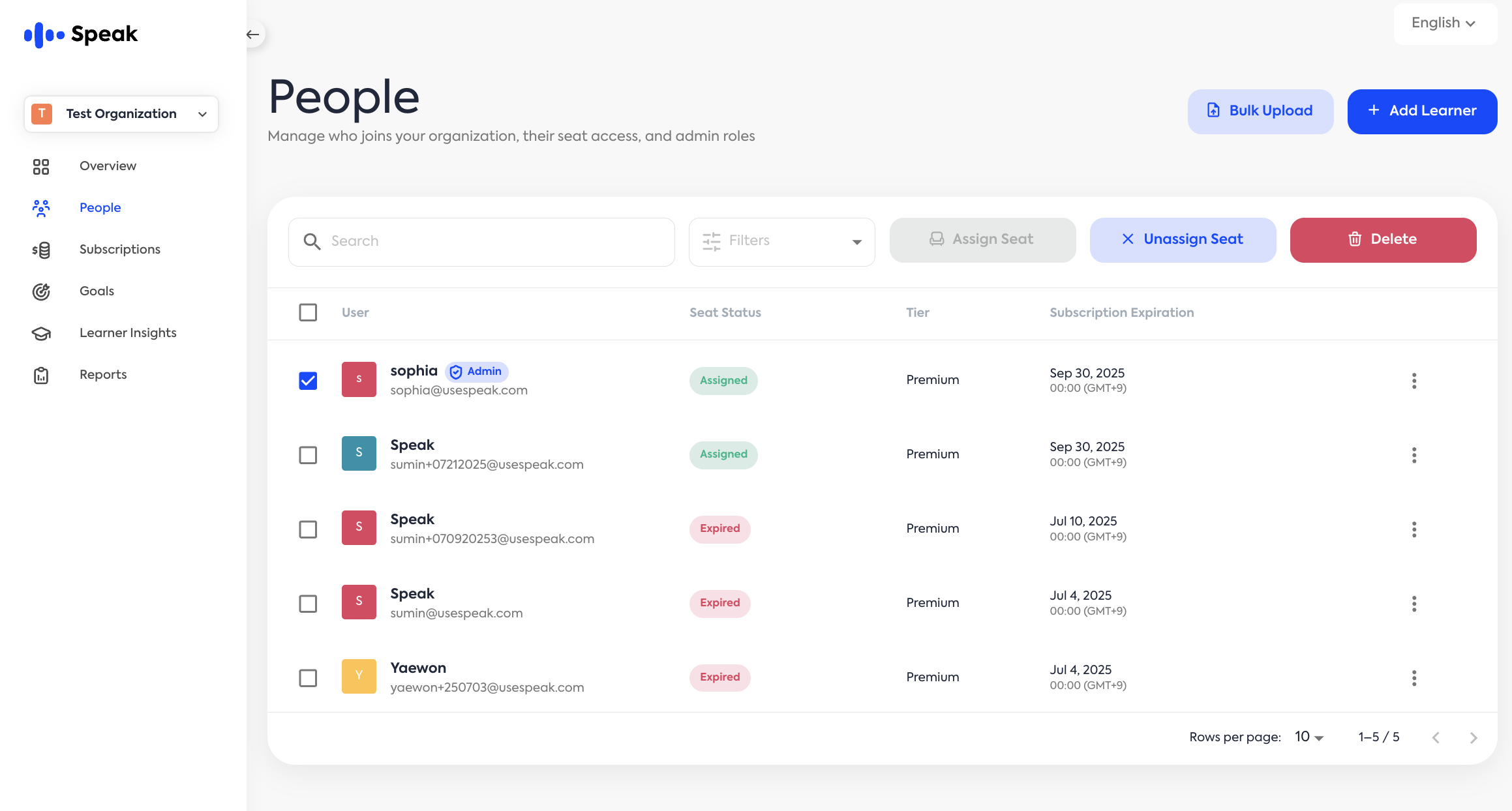
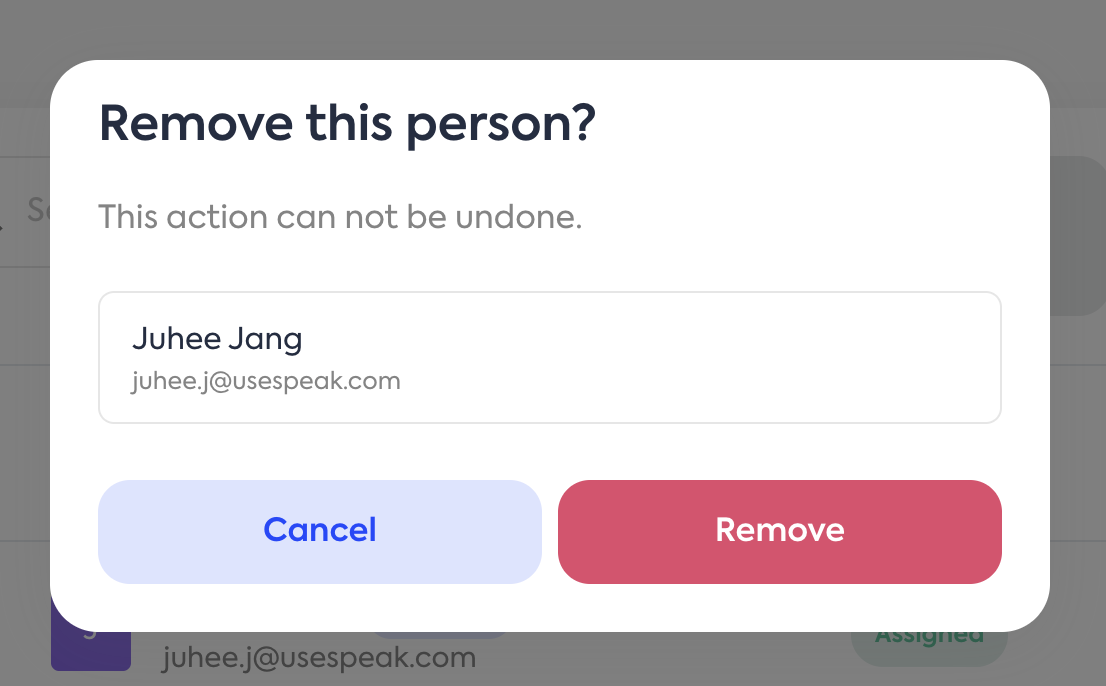
In the pop-up window, review the details and click the red “Remove” button.
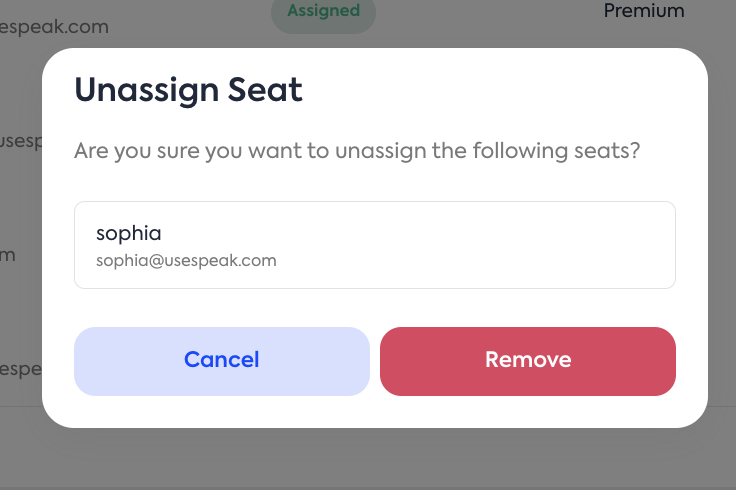
※ “Unassign Seat” only removes the subscription. To completely delete the account information from the organization, refer to “Remove a single Learner” below.
➖ Remove a single Learner
Go to the “People” tab in the left-hand menu.
Select the learner you want to remove.
Click the red “Delete” button in the top right corner. This will open the “Remove this person” popup.
Delete: Removes learner access and deletes the account information and learning records from the learning management platform.
Unassign Seat: Removes learner access but retains the account information and learning records on the learning management platform.
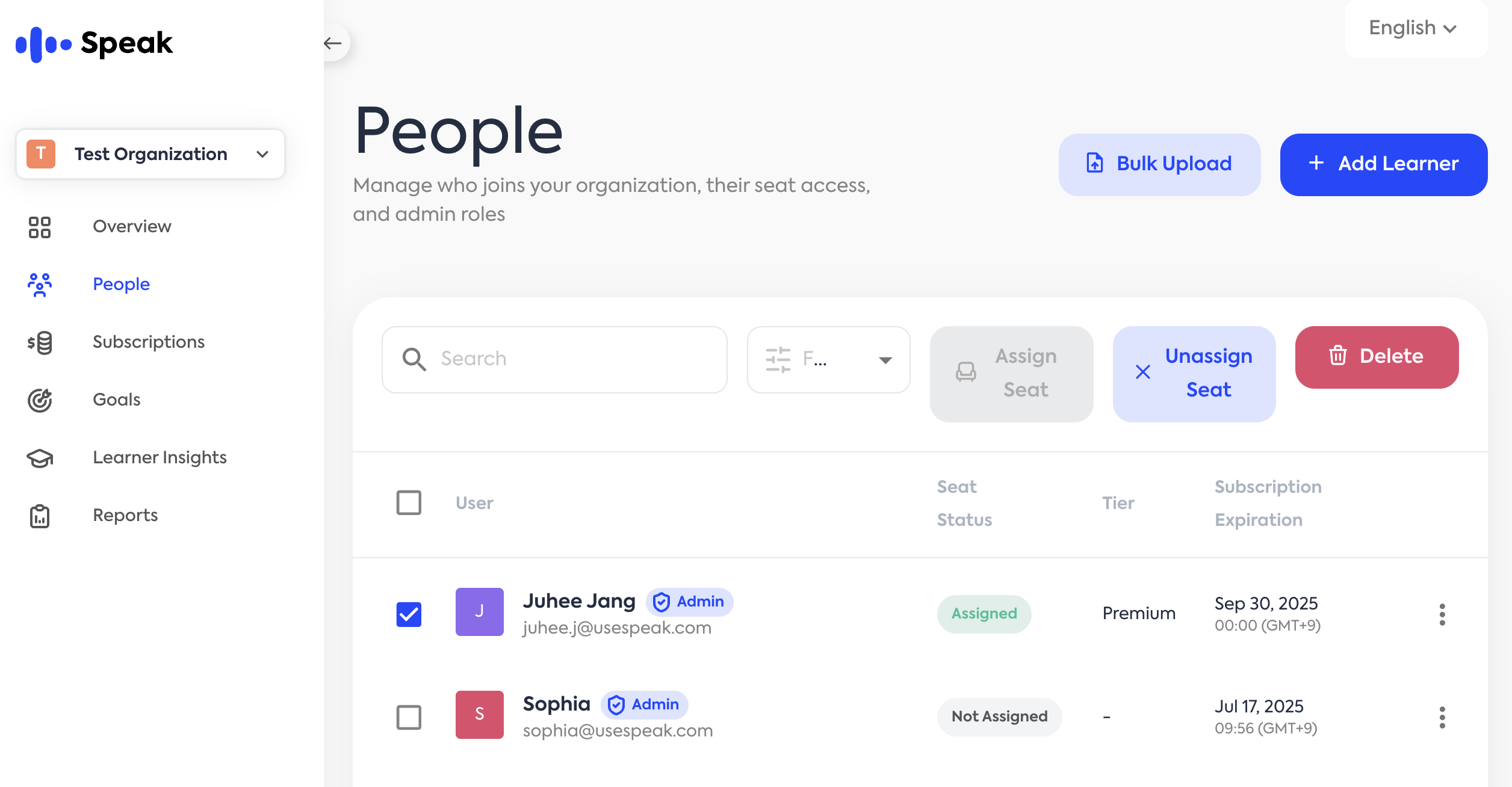
In the “Remove this person?” popup, review the leaners you want to remove, then click the red “Remove” button.