🎯 How do I set goals?
The Goals feature helps you define clear learning milestones for your cohorts, encourage engagement, and track performance over time. You can manage and monitor goals directly from the Partner Portal.
📌 Goals Tab
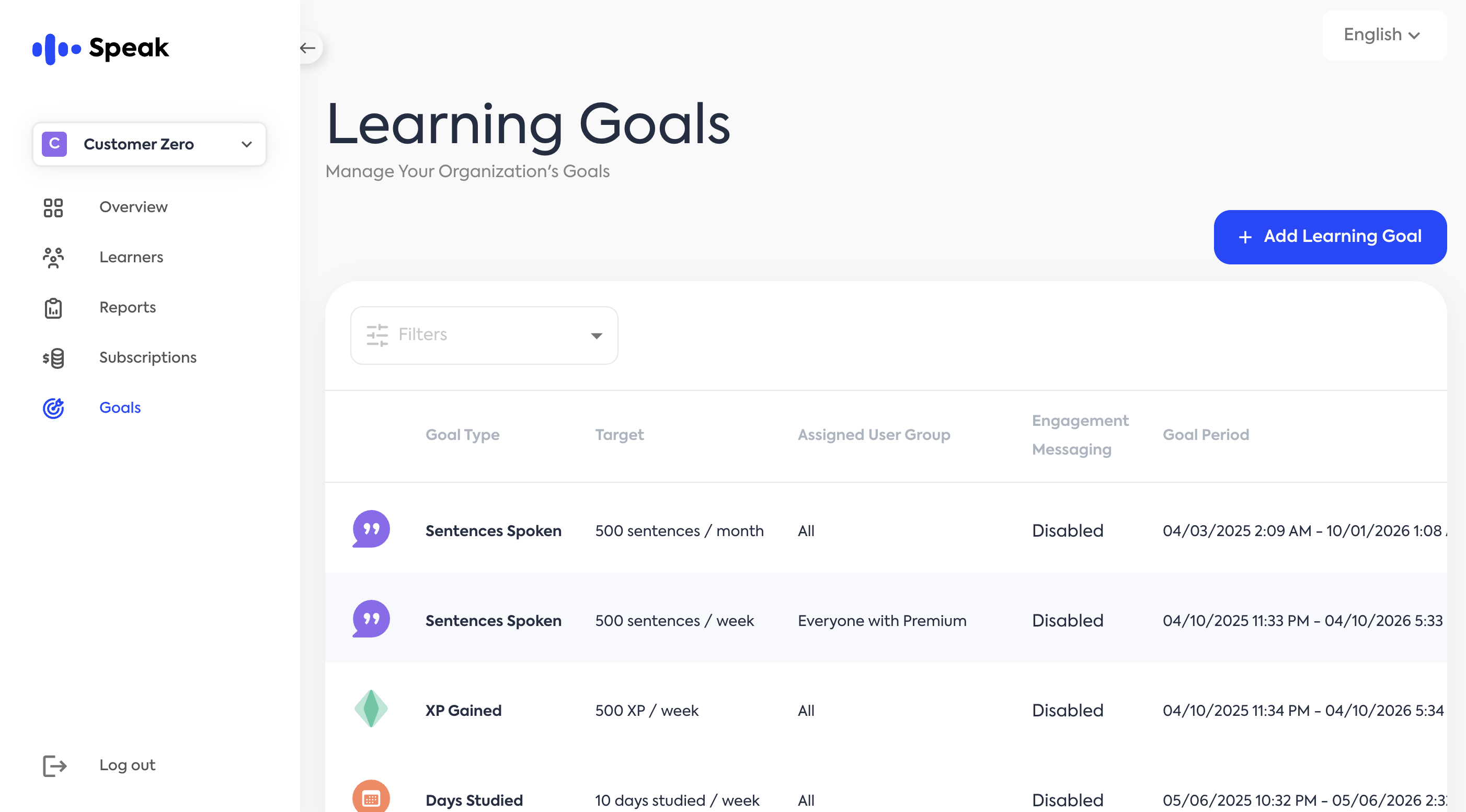
Go to the "Goals" tab in the left-hand navigation to open the Learning Goals screen. You can create, edit, and monitor custom goals here.
➕ Add New Learning Goal
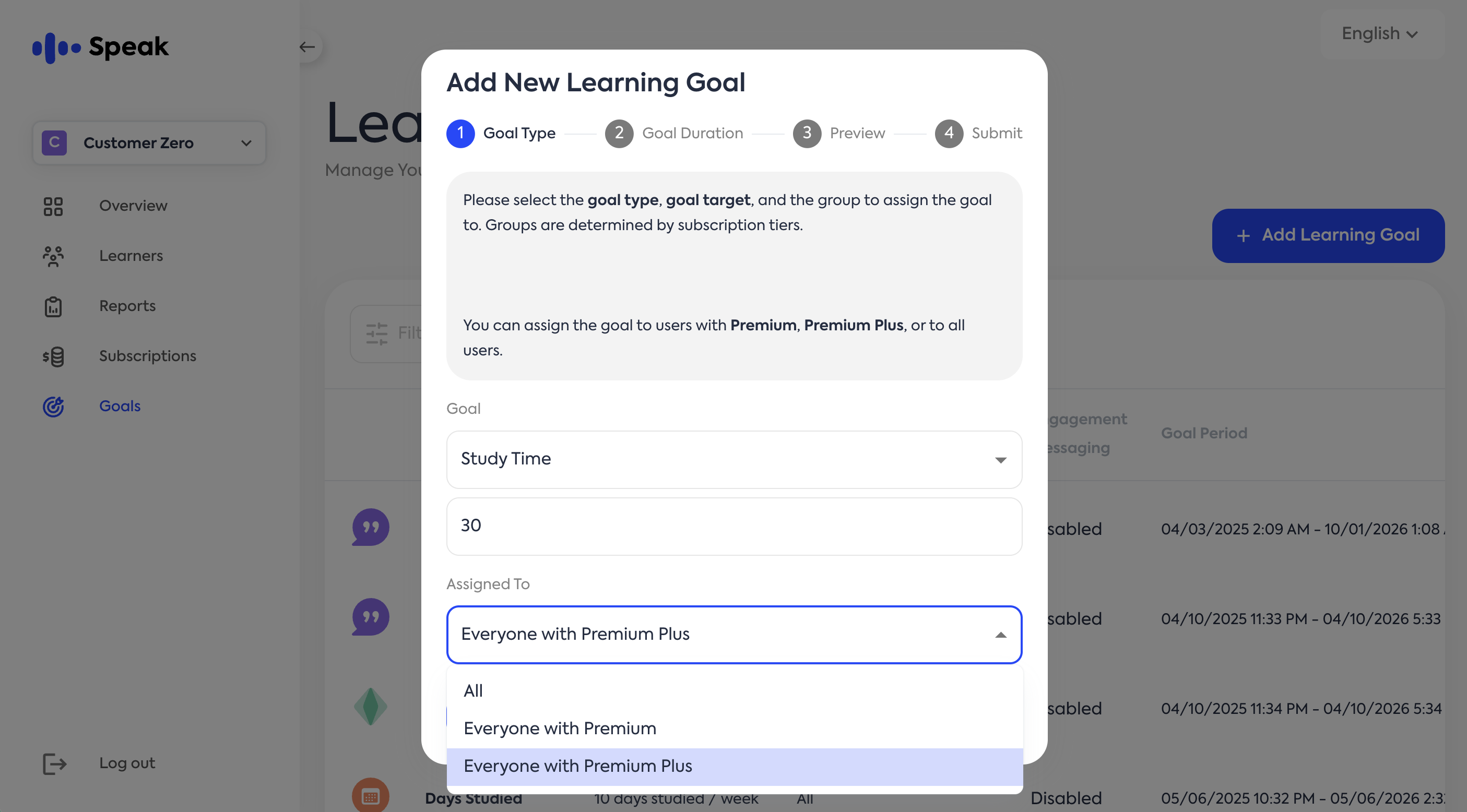
Click the “Add Learning Goal” to select the goal type, goal target, and the group to assign the goal to.
Step 1: Goal Type
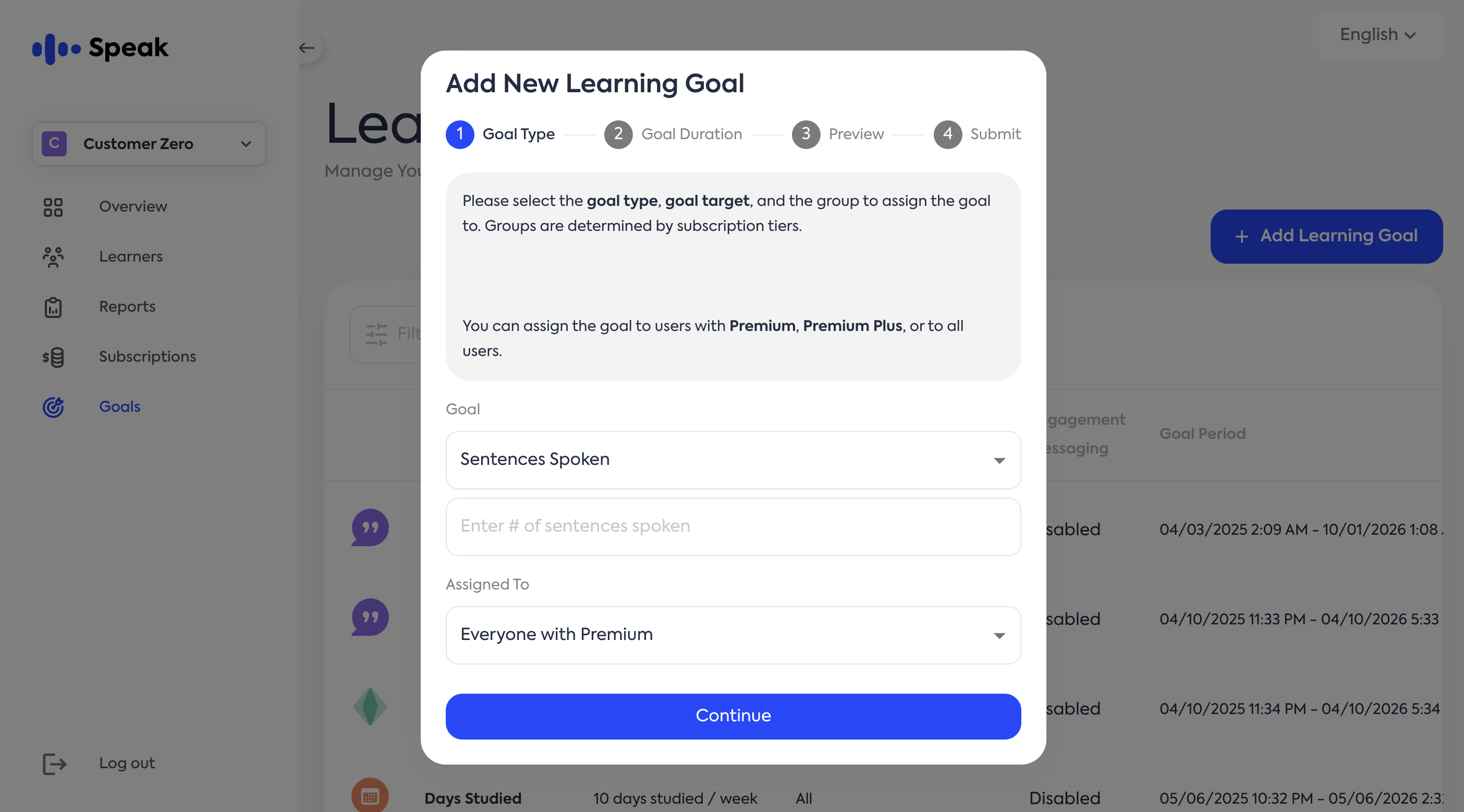
🎯 Goal Types - Goal Target
Sentences Spoken - Number of sentences spoken
XP Gained - Number of XP gained
Days Studied - Number of days studied
Study Time - Number of minutes studied
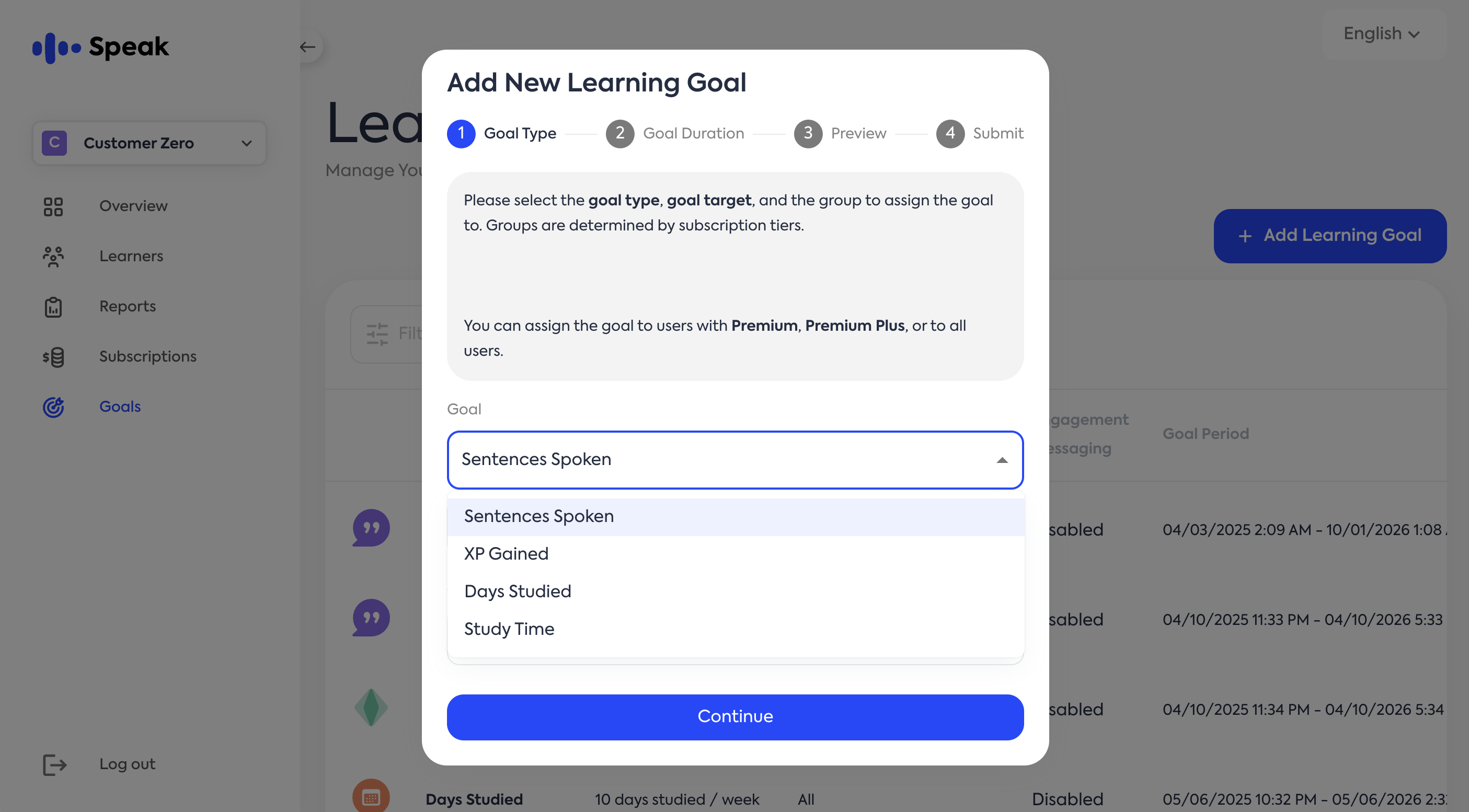
👤 Assigned To
Groups are determined by subscription tiers. You can assign the goal to users with Premium, Premium Plus, or to all users.
Step 2: Set Goal Duration
Define how long the goal will run and how it's tracked over time.
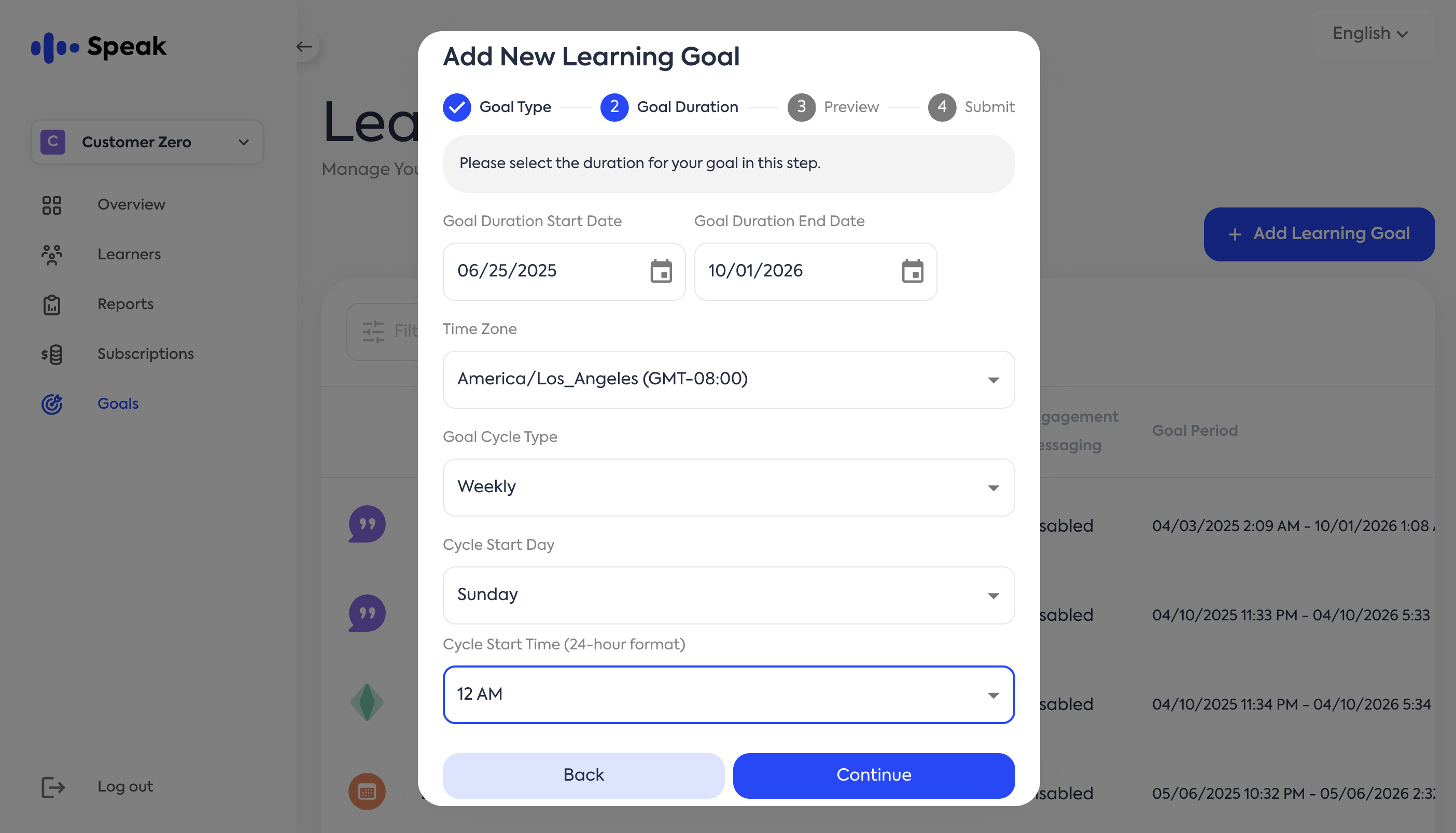
⏳ Duration Settings
Start date and end date
Set the timeframe during which the goal should be active.
Time zone
Aligns reminders and reporting to your local time.
🔁 Goal Cycle Type
Choose how often progress resets or is evaluated:
Weekly
Monthly
Quarterly
Annually
📅 Cycle Start Day
Select which day the goal cycle begins:
Any day between Monday - Sunday
⏰ Cycle Start Time
Specify the exact time of day the cycle should start.
Step 3: Preview Screen
Before saving, you’ll see a preview of the planned goal schedule based on your selected duration and cycle settings.
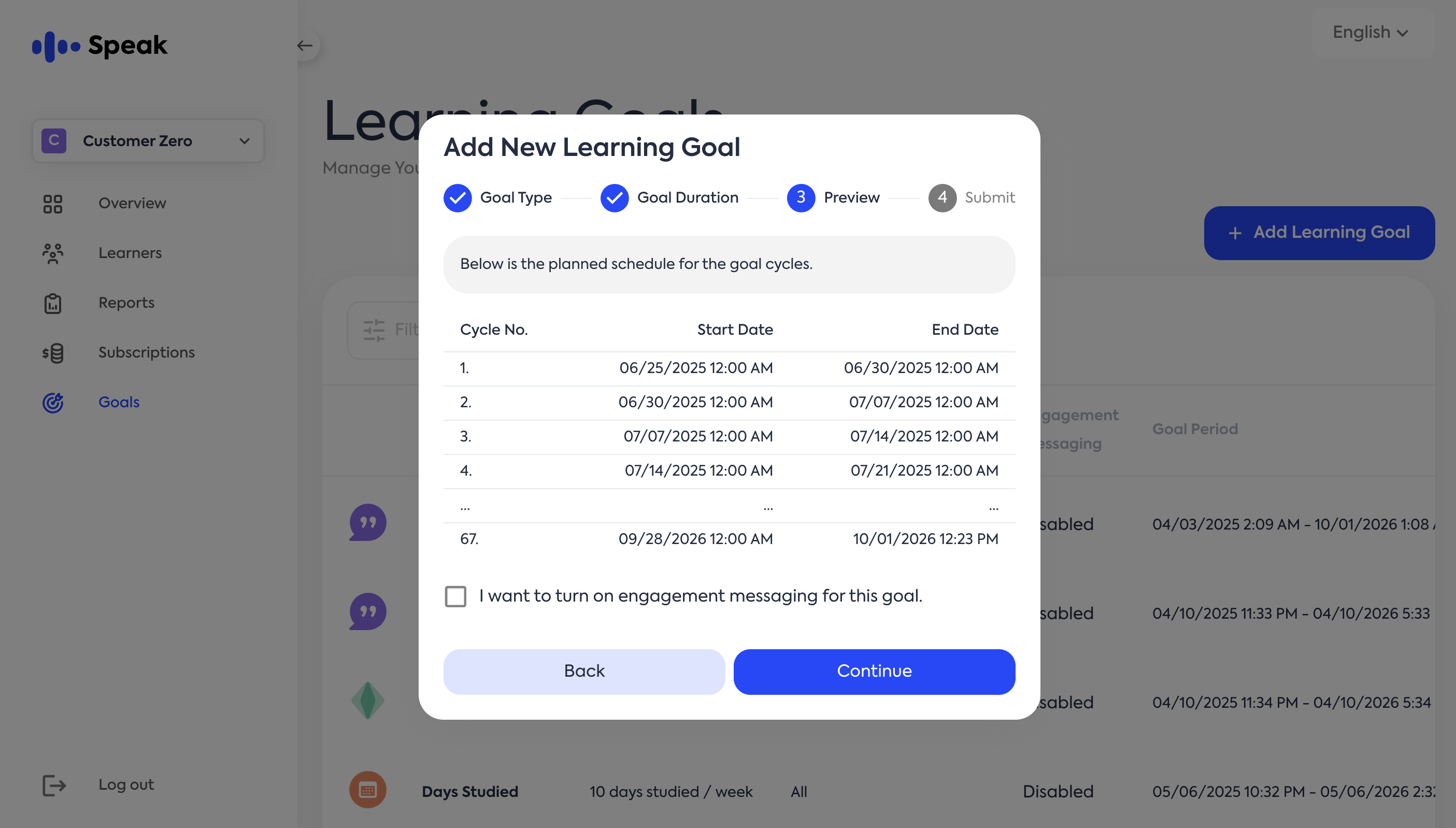
✉️ Optional: Enable Engagement Messaging
You can choose to turn on engagement messaging for this goal. When enabled, learners will receive automated messages.
Final Step: Confirmation
After saving your goal, you’ll see a success message:
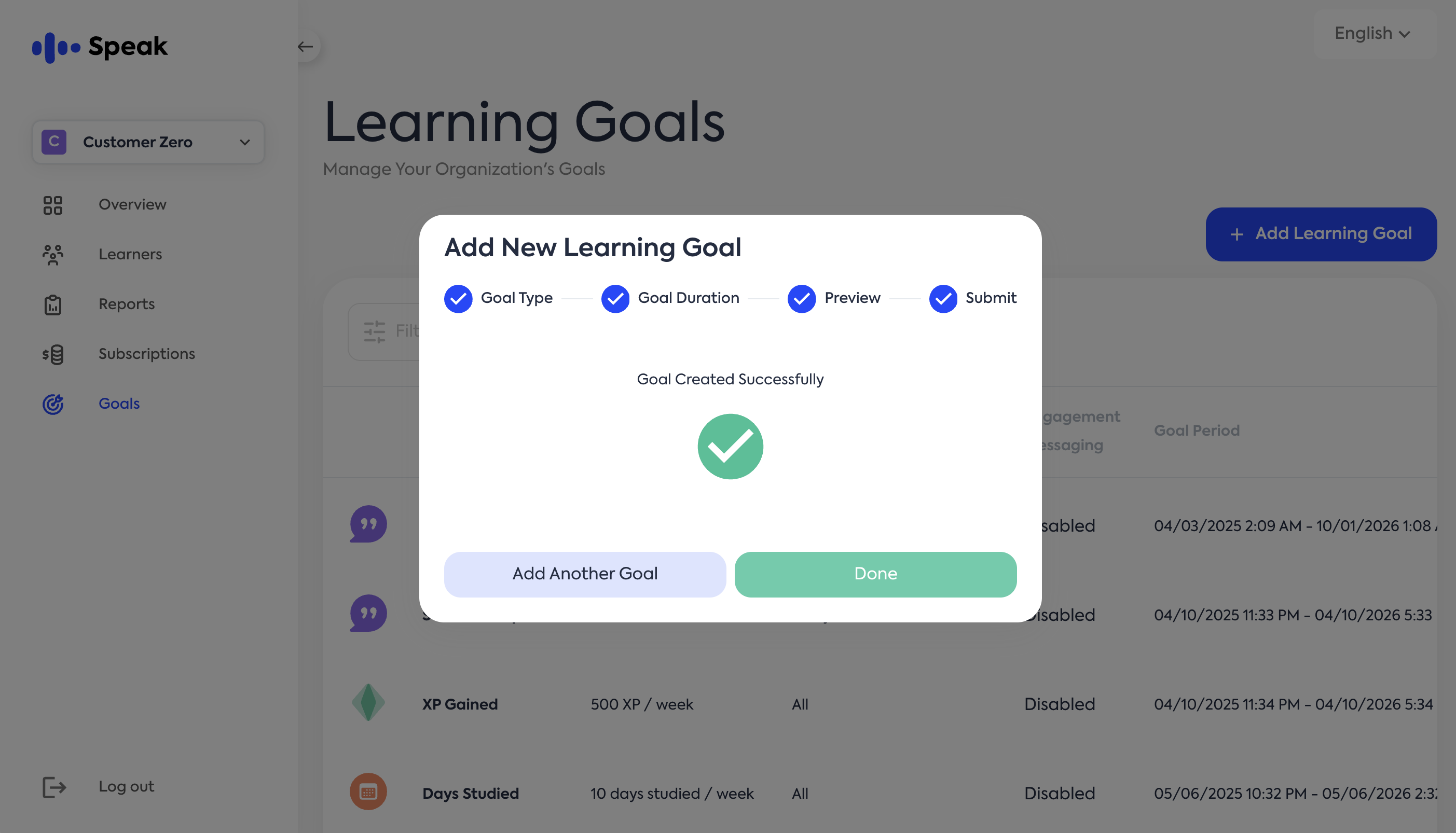
From here, you have two options:
➕ Add Another Goal
Start the process again to create a new goal.
✅ Click Done
Close the goal creation flow and return to the Learning Goals dashboard.